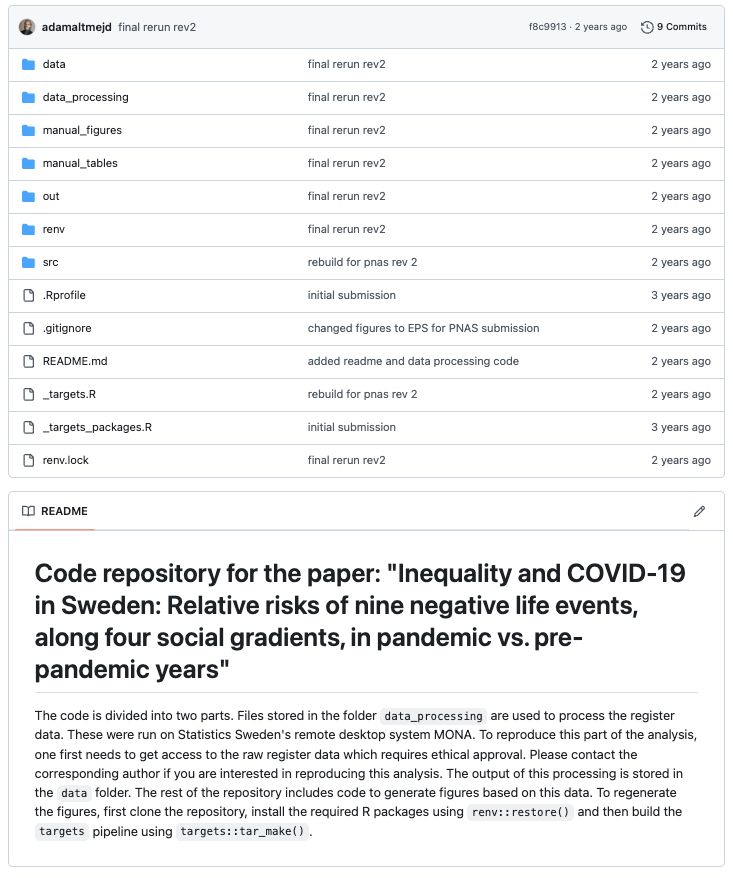
total 52K
drwxr-xr-x 12 runner runner 4.0K May 28 06:32 .
drwxr-xr-x 14 runner runner 4.0K May 28 06:33 ..
-rw-r--r--  1 runner runner  543 May 28 06:32 _metadata.yml
drwxr-xr-x  3 runner runner 4.0K May 28 06:33 lecture_1
drwxr-xr-x  3 runner runner 4.0K May 28 06:33 lecture_10
drwxr-xr-x  2 runner runner 4.0K May 28 06:33 lecture_2
drwxr-xr-x  2 runner runner 4.0K May 28 06:32 lecture_3
drwxr-xr-x  2 runner runner 4.0K May 28 06:32 lecture_4
drwxr-xr-x  2 runner runner 4.0K May 28 06:32 lecture_5
drwxr-xr-x  2 runner runner 4.0K May 28 06:32 lecture_6
drwxr-xr-x  2 runner runner 4.0K May 28 06:32 lecture_7
drwxr-xr-x  2 runner runner 4.0K May 28 06:32 lecture_8
drwxr-xr-x 2 runner runner 4.0K May 28 06:32 lecture_9Project Workflows and Version Control
Adam Altmejd 
The Institute for Evaluation of Labour Market and Education Policy (IFAU)
2026-03-30
Software install check (Problem set 0)
Did you…
- Install R?
- Install VS Code and the vscode-R extension?
- Install and configure Git?
- Create an account on GitHub and GitHub Education?
If so…
- You have already edited a file, made a commit, and pushed it
- Today is about understanding that workflow
Why this matters
- Reproducible work is easier to debug
- Clean projects are easier to share
Gitgives you history with more than just timestamps
Warning signs
- You can’t find the file you are looking for
- You’re not sure which data is raw and which one is cleaned
- Have outliers been removed?
- You have data/script files in
Downloads,Desktop- What project is
summarize_earnings.Rfor?
- What project is
- You have scripts called
final.R,final_v2.R, andfinal_final_REALLY.R- but which is the latest? - You and your colleagues are working in different versions
Project Hygiene
Project Hygiene
Short shell intro
Version Control in Git
Git Branches
Git Merge conflicts
Git Failure Modes
Extras
Self-contained projects
- Give each project its own folder
- Keep code, documentation, and project-specific outputs together
- Avoid reaching out to random files elsewhere on your computer
- Portable projects are easier to rerun, archive, and share
A sensible project tree
What goes where?
data/raw/: untouched source filesdata/processed/: cleaned or reshaped data created by your codesrc/: code/scripts that do the workoutput/: things your code produces for humans to inspect or submitREADME.md: what the project is and how to run it
src/ is for your code
- Put code in
src/, not in random top-level files - Numbers are fine for ordering, but never let them replace descriptive names
- A good test: could another person (or agent) guess where to look for a specific step?
Split code by job, not by mood
- Better: one (or several) script for cleaning, merging, figures
- Worse:
final.R,misc.R,functions.R,new_final.R - Split by function
Use relative paths
Many do-files start like this:
Don’t do this!
- Absolute paths hard-code your own machine
- Use relative paths that travel with the project:
Use relative paths (cont.)
- The working directory is the folder your code is running from
fread("mydata.csv")looks formydata.csvin the working directory
To set working directory: open the folder, not the file
- In
VS Code, open the project root folder - Then the file tree, working directory, terminal, and
Gitrepo all line up - You should see your folder and files in the sidebar
Use relative paths (cont.)
To reach a subfolder, navigate with /:
source("src/script.R")runsscript.Rin thesrcfolder
Use relative paths (cont.)
To reach a parent folder, navigate with ..:
fread("../../data_outside_project.csv")- Each
..navigating one level “up”
But you should never need to do this if you keep your projects self-contained! Why?
Start new sessions
- Don’t put
clear allorrm(list = ls())at the top of scripts - Instead, make it a habit to always start new sessions!
- More robust/reproducible
- Forces self-contained code
- Avoid bugs from leftover objects and settings
Raw is raw
- Put untouched source data in
data/raw - Do not edit raw data by hand
- Write cleaned outputs to new files
- If you overwrite raw data, you have deleted evidence
Naming is part of analysis
- Name folders, files, variables so anyone can understand
- Long names are better than abbreviations you will forget
- Figures:
scatter_income_by_gender.pngnotfigure_3.png - Variables:
log_family_incomenotinc4
README.md
- Every project root needs one
- What is this project?
- What data does it use?
- How do I run it?
- What output does it create?
.gitignore tells Git what to ignore
Gitshould mainly track code and small text files- Usually ignore:
- Data (especially proprietary/sensitive)
- large files
- generated output / process artifacts
- secrets and
.envfiles
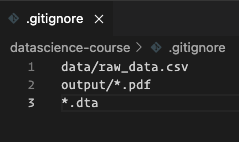
.gitignoreExample .gitignore lines
- Ignore patterns are just text lines
- Prefer ignoring folders or generated artifacts you can recreate
- Be careful with broad patterns like
*.csv - The point is to track source and logic, not every disposable by-product
Short shell intro
Project Hygiene
Short shell intro
Version Control in Git
Git Branches
Git Merge conflicts
Git Failure Modes
Extras
The Unix shell
The Unix shell (cont.)
Hackers in movies are often portrayed working in terminals.
In reality, developers use shell commands because they offer efficient ways to interact with computers and files. We will work in a shell originating in the Unix family of operating systems.
The Unix philosophy is for tools to be “minimalist and modular” to:
Do One Thing And Do It Well
Terminology
- Terminal, command prompt, tty: wrapper that runs the shell
- Shell, Bash, zsh: programs that run commands and return output
- Console: your computer
We will use Bash which is a shell variant
- Included by default on Linux and MacOS1
- Windows users should install Git Bash
The Terminal
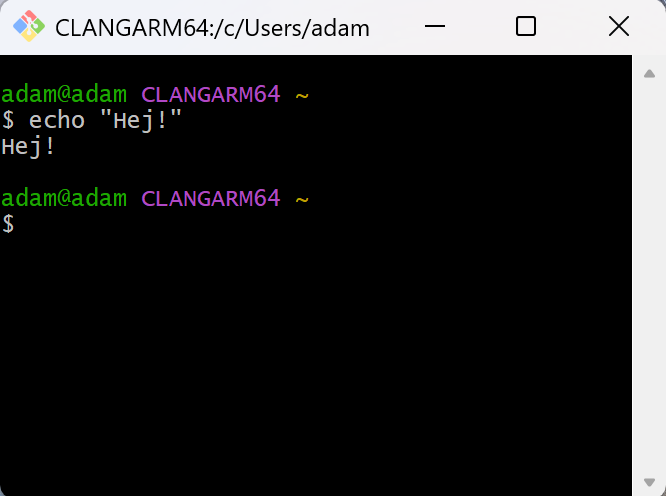
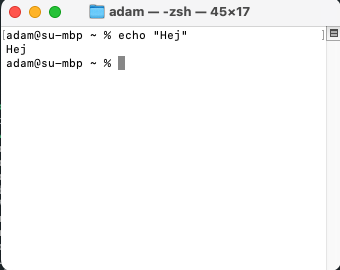
In VS Code:
- Open it from
Terminal -> New Terminal - Same project, same folder tree, same repo
The shell
- Mac and Linux are Unix-like OS with Unix-style shells
- Git for Windows provides Bash emulation
- Why?
- Almost all servers speak shell
- To know what goes on “under the hood”
- Automation
- Reproducibility (again!)
Things I use the shell for
- Git
- Renaming and moving files
- Installing and updating programs
- Interacting with servers
- Scheduling tasks
- Manipulating large sets of files:
First look
username: who you arehostname: which computer you are on~: your home folder$: the prompt where you type commands
Path symbols
.= current directory..= parent directory~= home directory/= sub folder- Relative paths use these symbols instead of hard-coding your whole machine
Commands have a simple structure
- command = what to do
- flag = how to do it
- argument = what to do it to
Commands and flags
- Flags always start with one or two dashes
- Example command
ls:-l= output a list-a= show all, also hidden-h= human readable file sizes../= look in parent folder (argument, not a flag)
Seven commands are enough for now
pwd: where am I?ls: what is here?cd: go somewhere elsefind: locate filesmkdir: create a directorymv: move or rename a filegit status: what changed?
A tiny navigation example
Small file tasks
mkdir: create a directorycp: copy a filemv: move or rename a file
Tab completion is free speed
- Start typing a path, then hit
Tab - Use the up-arrow to repeat old commands
- This reduces typos and makes long paths tolerable
man for manual
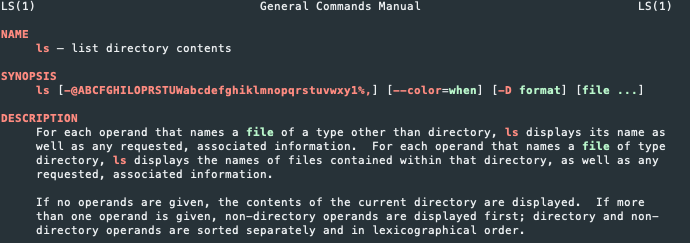
Use space to browse, press h for help and q to quit.
Short shell intro
- This was just a very basic introduction
- Hopefully the sight of a command line will be a bit less scary
- Resources at the end for those who want more!
Version Control in Git
Project Hygiene
Short shell intro
Version Control in Git
Git Branches
Git Merge conflicts
Git Failure Modes
Extras
Why version control?
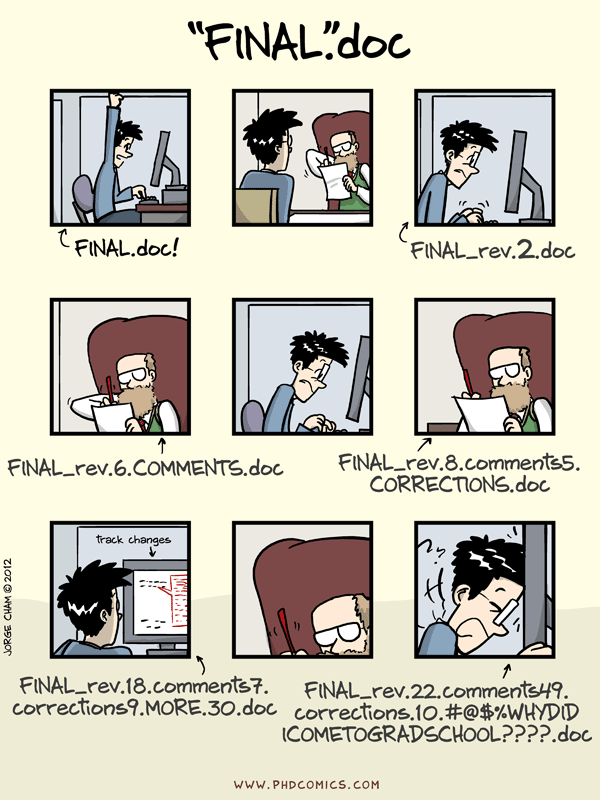
- It records what changed
- It lets you go back
- It makes collaboration less chaotic
- It is much better than emailing
.zipfiles around like it is 2007
Git, GitHub, VS Code
Git: the version-control system on your computerGitHub: a remote home for repositories—usesGitVS Code: the editor that lets you work with files andGitin one place- Keep the roles separate in your head and life gets easier
How does Git work?
- A project = a Git repository
- Each user works in their own local copy
- Labelled history with commits
- Branches enable multi-feature development
- Changes synchronized to GitHub on demand (unlike Dropbox)
- Facilitates collaboration with branching, conflict management, pull requests
A repository is just a folder with memory
- Your working tree = files as they look right now
- The staging area = what will go into the next commit
- The commit history = saved snapshots with messages
- The remote = the GitHub copy
The four operations to remember
git add: stage changes for the next snapshotgit commit: record staged changes in your local historygit pull: bring remote changes down to your machinegit push: send your local commits up to GitHub
The basic cycle
- Edit files
- Check
git status - Stage what belongs in the next commit
- Commit with a useful message
- Pull if the remote may have changed
- Push to GitHub
The core commands
Stage and commit in two steps, why?
git commitjust commits staged files- We use
git add <file>to chose what to commit- Can even
git add --patch <file>to stage parts
- Can even
- This allows to divide up changes into multiple commits based on features/components
Pull and push are not the same
git pullbrings remote changes to yougit pushsends your committed changes to the remote
git status is your friend
- Am I in a repo?
- What changed?
- What is staged?
- Am I ahead or behind?
- When confused, start here
Initialize a repository (on GitHub)
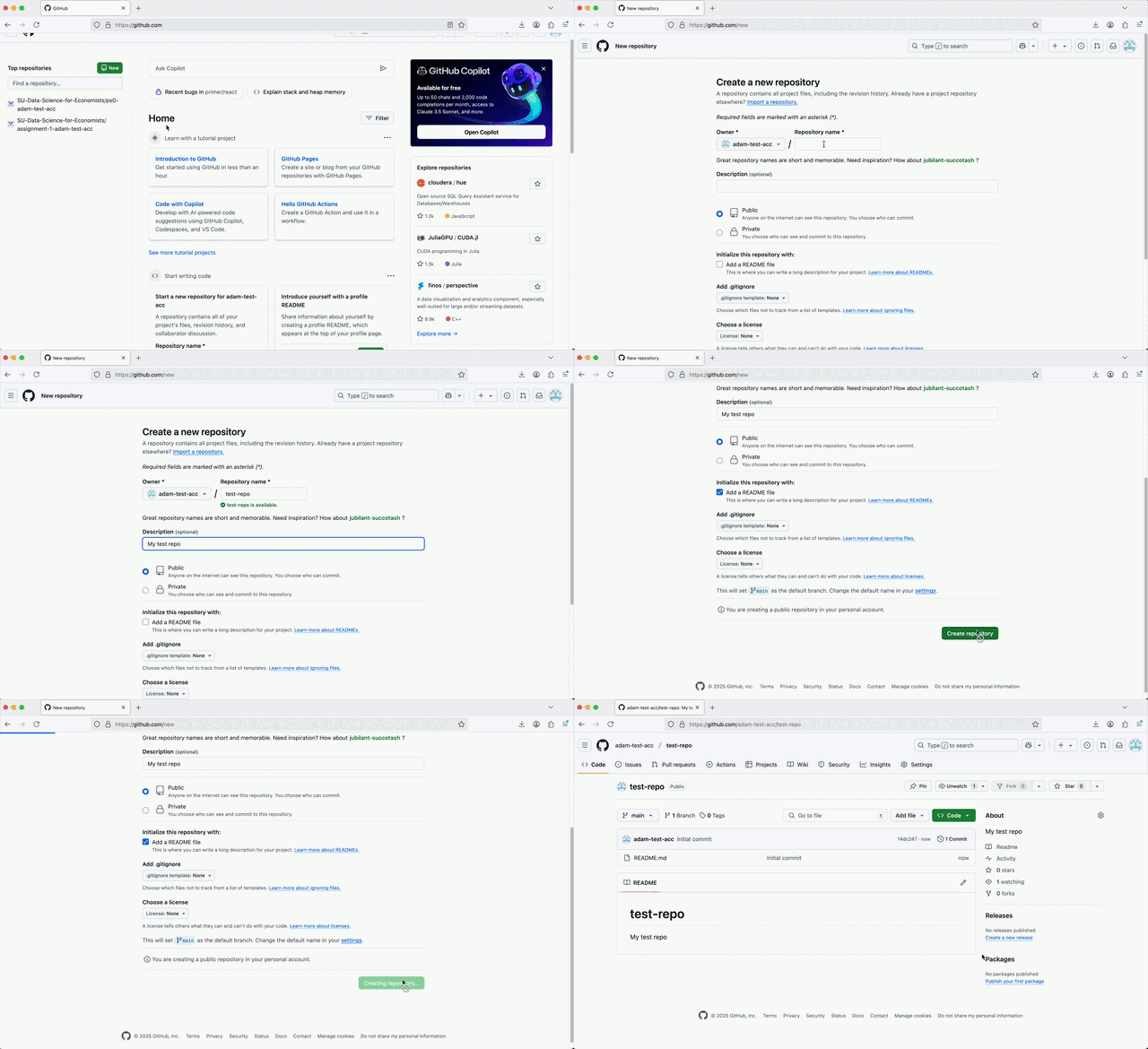
Clone a repo in VS Code
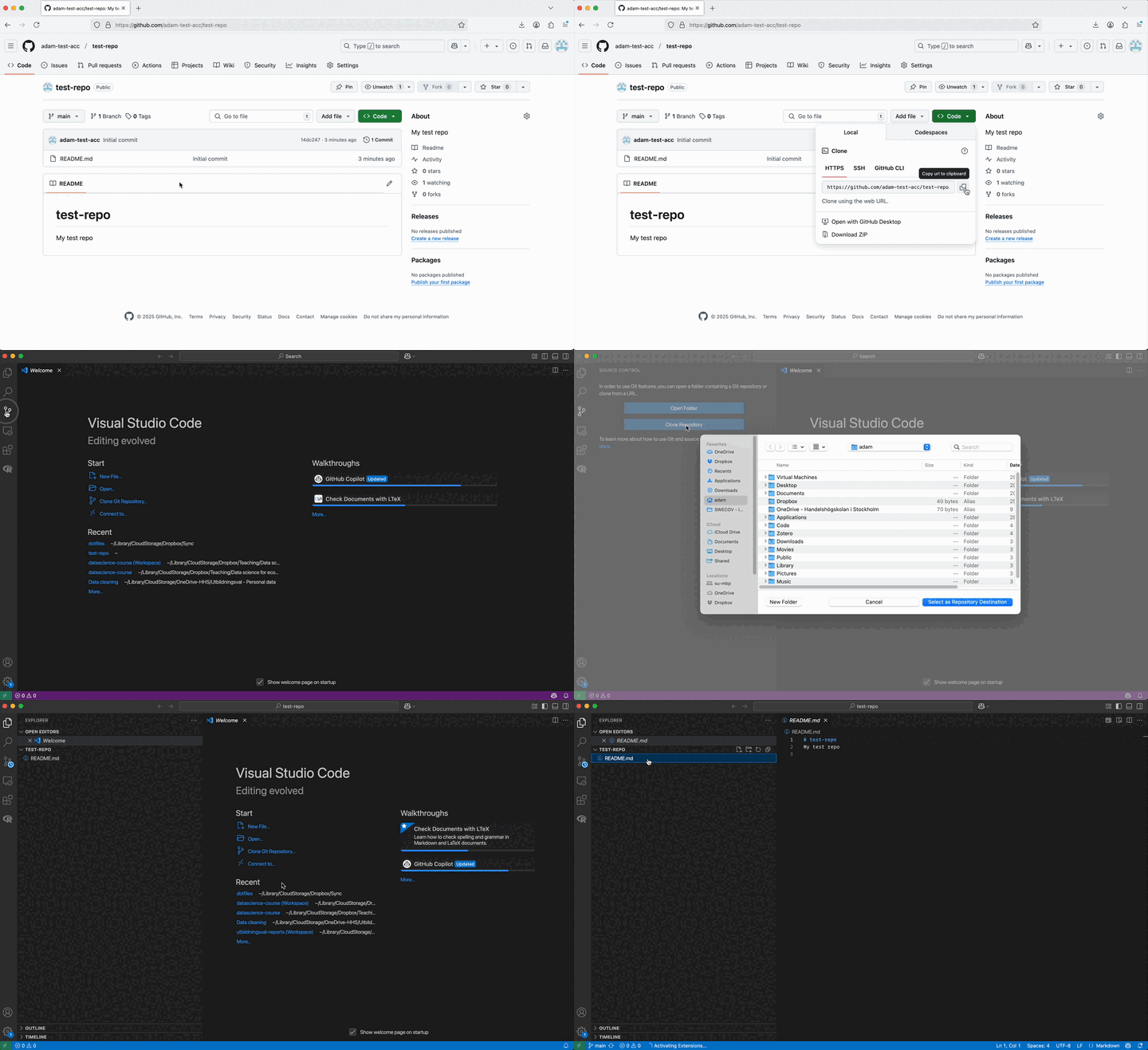
Clone or open an existing repo
Stage, commit, and push changes
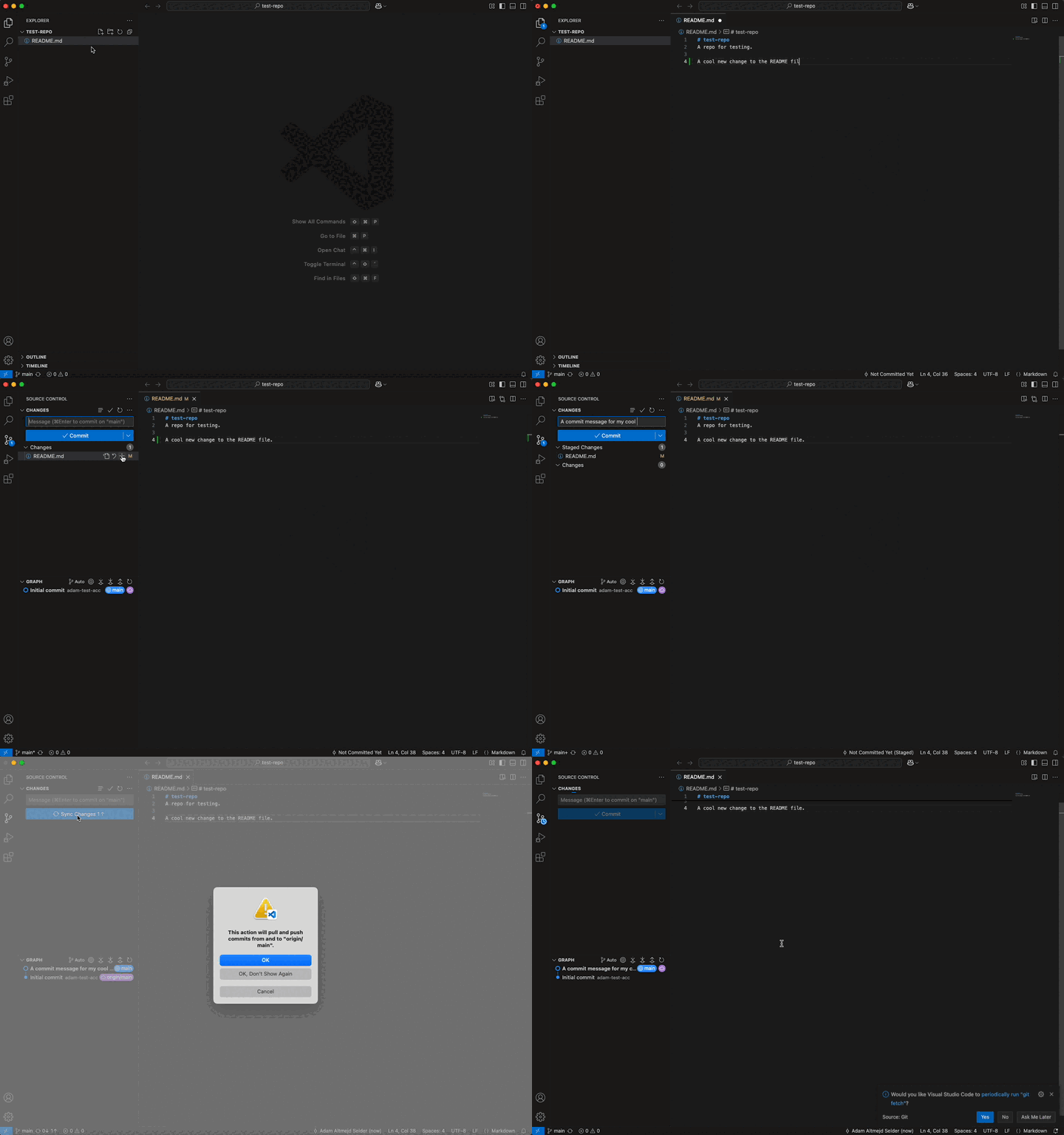
Follow the instructions in Problem set 0 to set up your Git user.name and user.email. Otherwise you will get an error when pressing “Commit”.
Good commits are small and legible
- Bad:
update,changes,stuff - Better:
Add README setup section - Better:
Clean municipality names before merge - Commit early and often
- Commit when one small idea is done
Git is not backup
Gittracks changes- It does not protect you from deleting the wrong folder
- It does not make giant raw files pleasant to manage
- Keep a real backup too (Box/Dropbox, external drive, etc.)
Git Branches
Project Hygiene
Short shell intro
Version Control in Git
Git Branches
Git Merge conflicts
Git Failure Modes
Extras
Branches
- Want to test a large change, but unsure it will work?
- Create a new branch to try it out, then just revert to main if it fails.
- Keep track of your changes (with commits) without disturbing your collaborators with unfinished code.
- If you are happy with your changes, merge them to the main branch.
- Branching is awesome, use it!
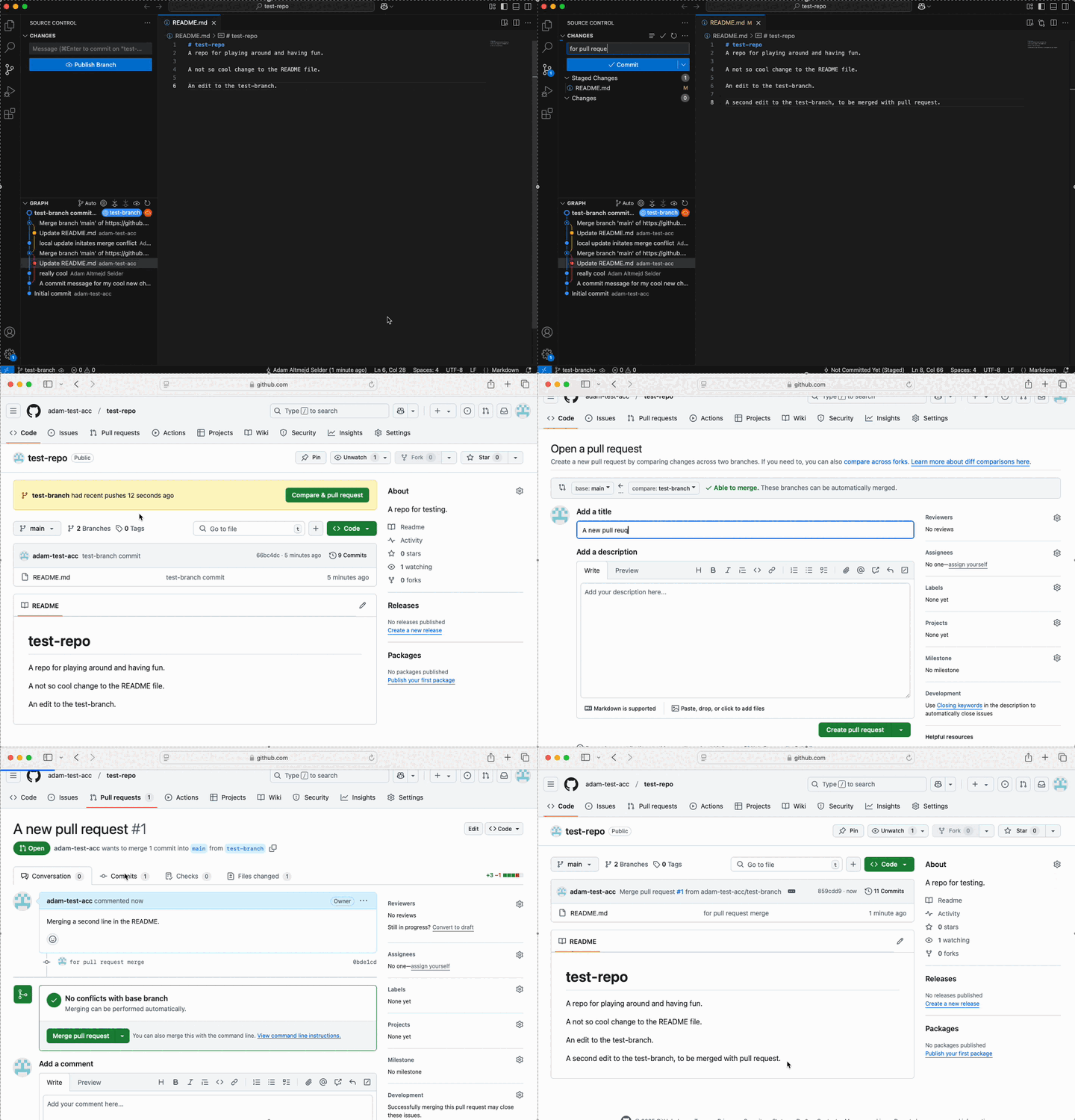
Creating a new branch in VS Code
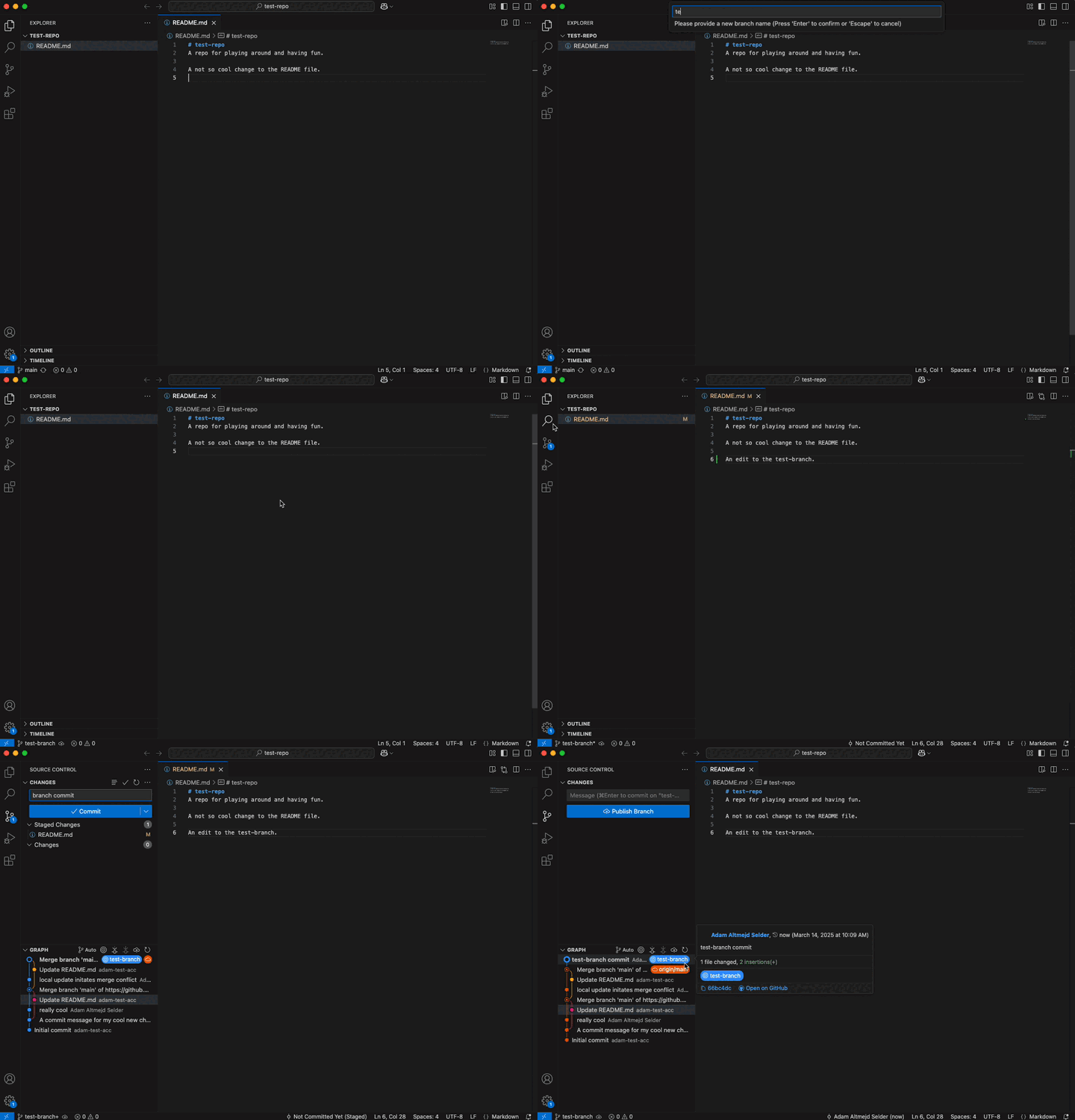
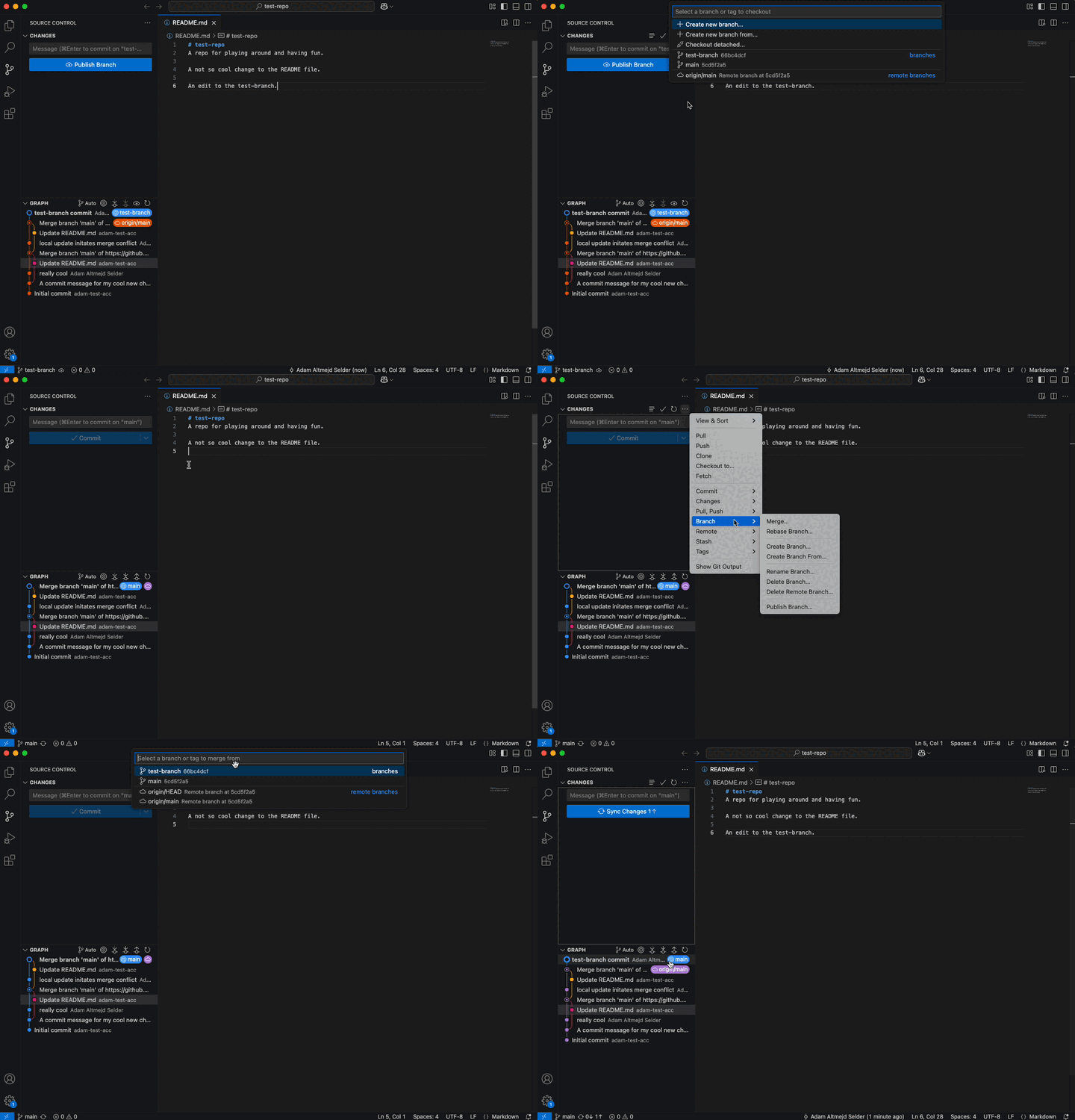
Merging branches locally
Pull requests (GitHub feature)
- A pull request is a proposal to merge one branch into another
- Useful in team projects (code review), overkill for solo work
Git Merge conflicts
Project Hygiene
Short shell intro
Version Control in Git
Git Branches
Git Merge conflicts
Git Failure Modes
Extras
Merge conflicts
- A conflict happens when
Gitsees competing edits Gitstops because it does not want to guess- Annoying, yes
- Still better than silent overwriting
Merge conflicts in VS Code
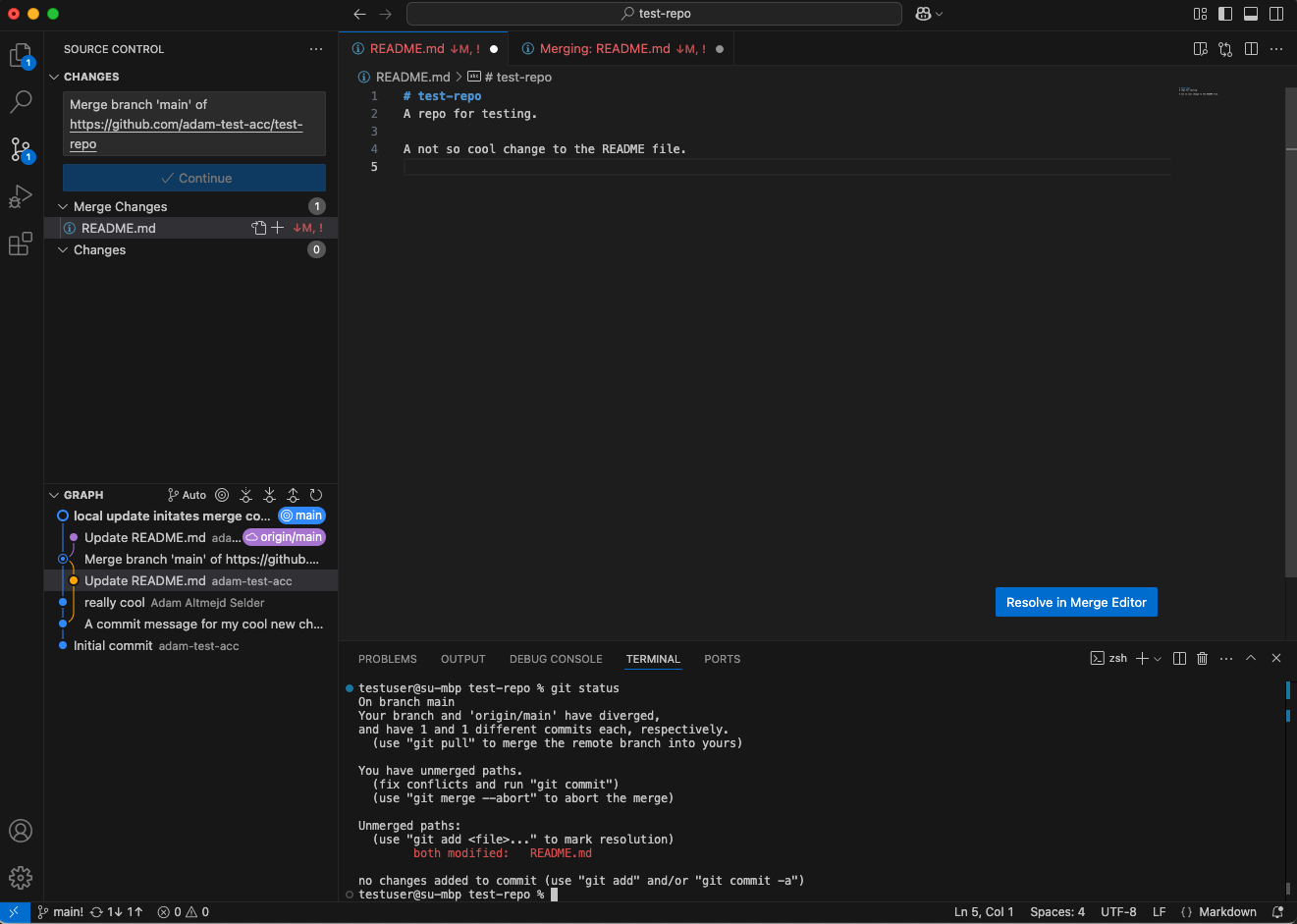
Resolving conflicts using the merge editor
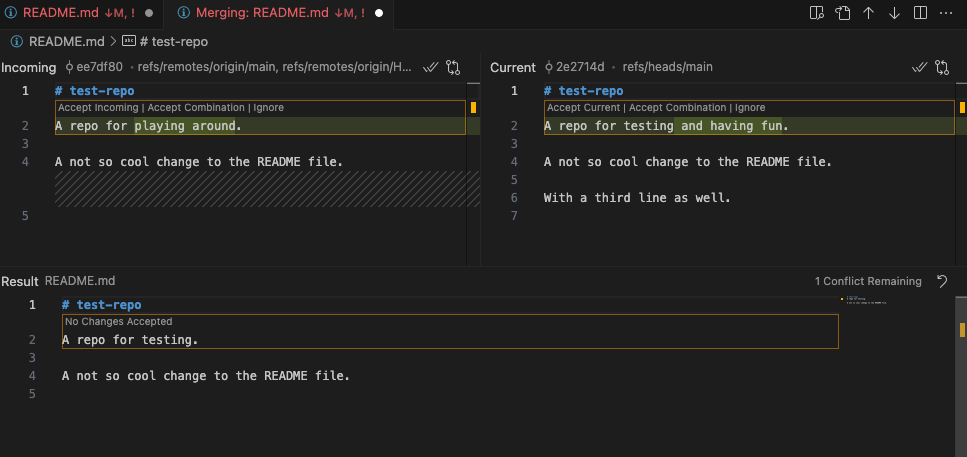
Resolving conflicts using the merge editor
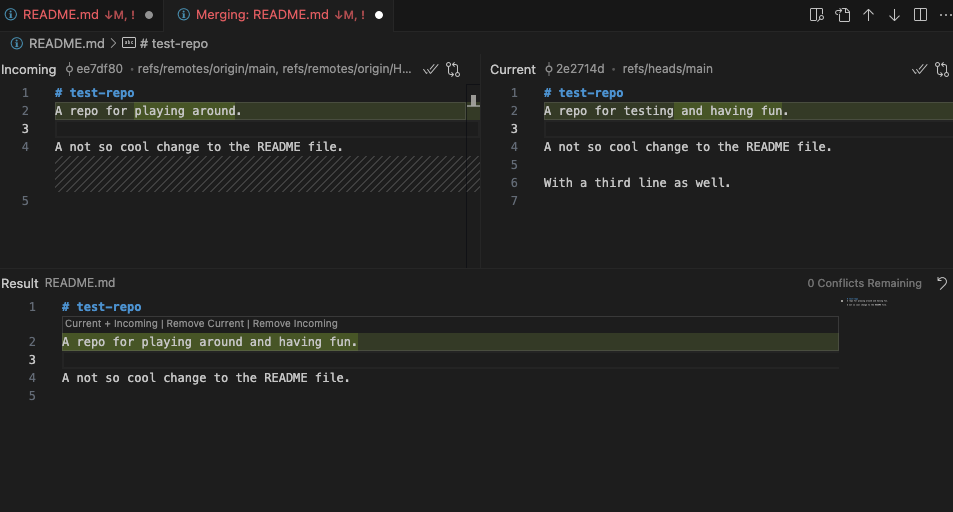
Example: Code change by multiple sources
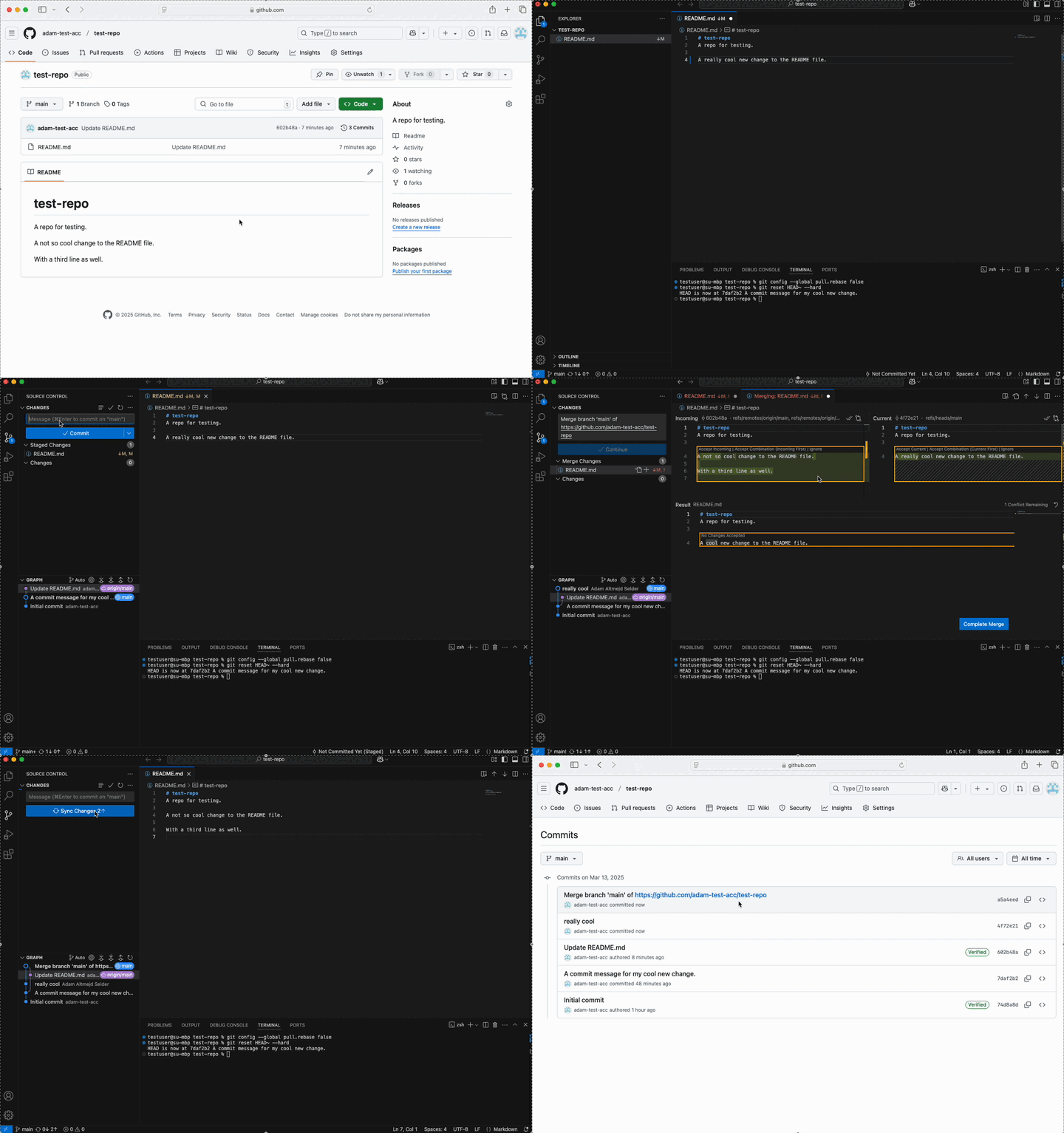
Two contributors have made changes to the same file. Git stops merge to not overwrite changes. Requires manual conflict resolution.
Manual edits
VS Code provides a great UI for resolving merge conflicts, but you can also do it manually by editing the conflicting files. If you open the file you will see something like this. The strange characters are Git’s way of highlighting the merge conflict.
You fix the conflict manually by simply removing the characters and chosing the text you prefer.
You do not need all of Git today
- Need now: repo,
status,add,commit,push - Useful soon:
pull, branches, pull requests, conflict awareness - Useful later:
SSH, rebasing, tags, more careful collaboration workflows
Git Failure Modes
Project Hygiene
Short shell intro
Version Control in Git
Git Branches
Git Merge conflicts
Git Failure Modes
Extras
Boring failure modes
- Opened the wrong folder
- Edited a file outside the repo
- Forgot to save before committing
- Tried to commit generated junk
- Saw an error and started guessing
First recovery habits
- Read the error message
- Check what folder you are in
- Run
git status - Look at the file tree
- Change one thing at a time
If Git says “nothing to commit”
- Maybe you changed nothing
- Maybe you changed a file outside the repo
- Maybe the file is ignored by
.gitignore - Maybe you forgot to save
If push is rejected
- Usually authentication failed, or the remote moved
- Read the message before clicking random buttons
- Do not delete the
.gitfolder - Do not start over unless you understand why
If you get stuck
- Stop making random changes
- Figure out what state the project is in
- Ask for help before you dig deeper
- Most workflow problems are fixable if you stop early enough
What I want you to be able to do after today
- Organize a project sanely
- Use relative paths
- Open a repo in
VS Code - Make and explain a commit
- Push work without panic
- Understand what branches, pull requests, merge conflicts are for
Git advice
- Commit often, work in small features
- Don’t: “New data processing script”
- Do: “Removed duplicates from survey data”
- Push changes when you want your collaborators to see
- Git is not backup!
- Branches are useful even when solo
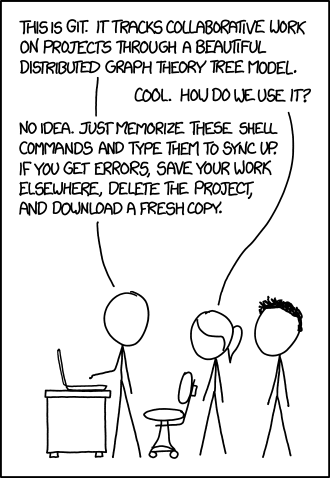
When all else fails… 🤷
Next Time: R Basics
- Running code
- Objects and vectors
- Missing values
- Functions
- Reading simple errors without immediately spiraling
Extras
Project Hygiene
Short shell intro
Version Control in Git
Git Branches
Git Merge conflicts
Git Failure Modes
Extras
SSH=Secure shell
- Logs in to server over remote channel
- Really useful but setup requires some work
- Uses public key cryptography
- Private key - stored on your computer
- Public key - stored on the server
- When connecting the private key encrypts a message that can only be validated by the corresponding public key
SSH and GitHub
SSHis another way to authenticate with GitHubHTTPSis fine for beginnersSSHbecomes convenient if you useGita lot
Generating a key pair
To generate an SSH key pair and register the public key with GitHub, follow these steps. For detailed instructions, see GitHub Docs.
Press Enter to accept the default file location. When prompted, enter a secure passphrase (your terminal will not show characters as you type).
Storing the passphrase using ssh-agent
You should secure your keys with a passphrase. But it might become annoying having to type the passphrase each time you use the SSH key. Instead, you can use a ssh-agent to store the passphrase for you. On Mac/Linux this is easy:
On Windows, it’s more complicated. I’ve included the instructions in Problem Set 0 but let’s go through them together now.
Connecting to Github over SSH
To use SSH with Github you first need to add your public key to your GitHub profile. Go to settings and “SSH and GPG keys” to add it.
Afterwards, run:
Now you can clone repositories using SSH rather than https.
We will get back to how to use SSH to connect to servers later in the course.
Resources
- When Git is not working: https://ohshitgit.com
- Practicing shell commands: https://cmdchallenge.com
- Everything you need about Git+R: https://happygitwithr.com
- Basic shell https://swcarpentry.github.io/shell-novice
- Intermediate shell https://seankross.com/the-unix-workbench
- Advanced shell https://jeroenjanssens.com/dsatcl